Back to main
Managing company profile and users
You can manage company profile details and users through the Corporate Profile page, accessible from the user menu in the top right corner. Selecting the Corporate Profile menu item will take you to a page that provides an overview of the company details and users:
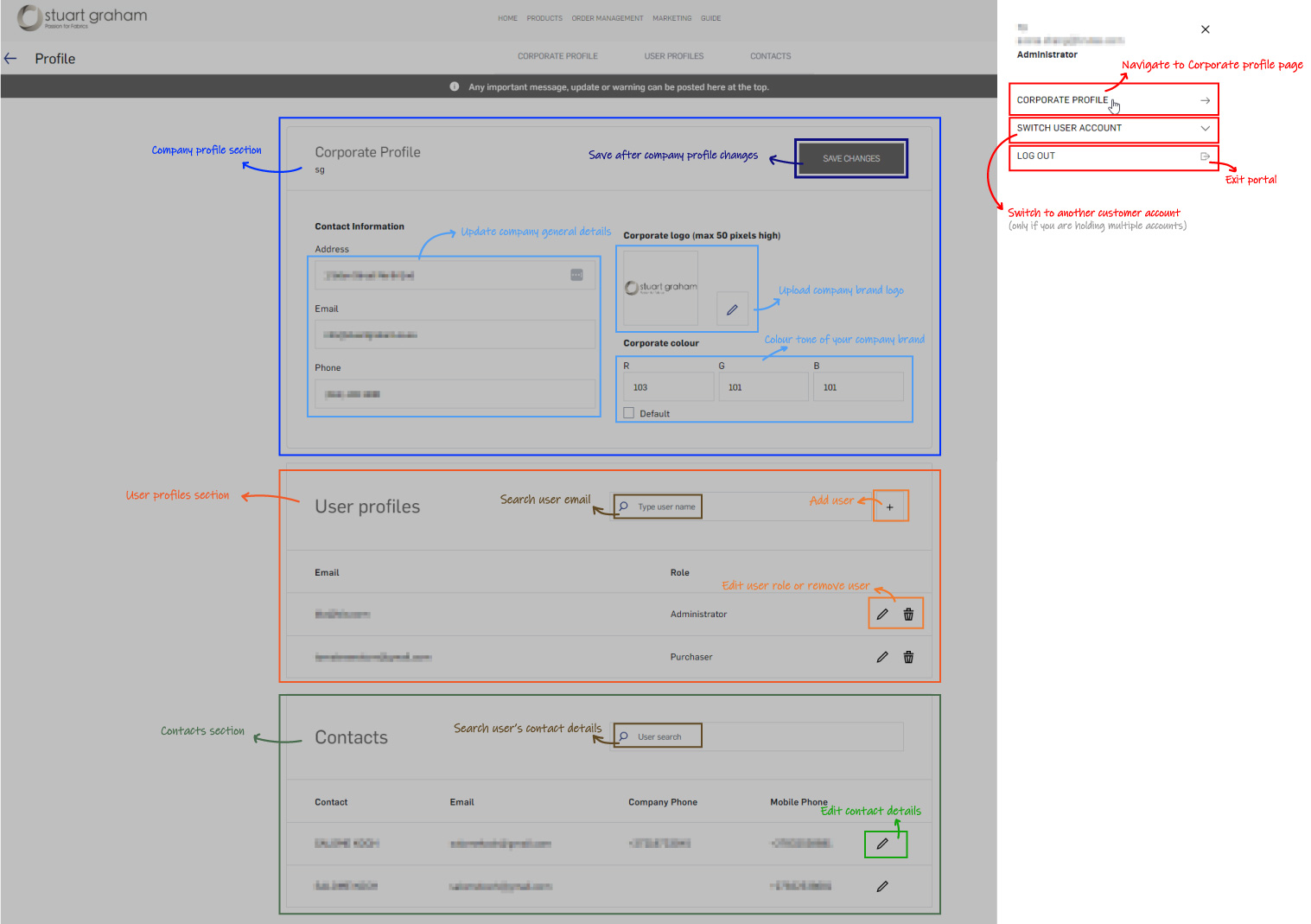
- Update corporate details/logo and colour
You can upload your company logo and customize the brand colors. Additionally, you can update company details on the corporate profile page. Once you’ve completed these steps, click “Save Changes” to replace the default site color and logo in the portal.
- Add user
Click on the 'Plus' icon in user profiles section to add users. Available user roles are as following:- Administrator - full access: impersonating or switching account, viewing pricelist, tracking orders, downloading assets and editing rights
- Purchaser - limited access: viewing pricelist, tracking orders, downloading assets and downloading rights
- Product viewer - read-only access: viewing product-related information (i.e. not including order and invoice information)
- Edit or remove user
If you would like to edit or remove user from your portal, simply search the user's email and click on the icons beside the name to decide.
- Search and update person's contact detail
Use the search function to locate the individual whose contact details need updating. You can search by name, email, or phone numbers.